Timeline Motion Tween in Flash 8
Introduction
Flash can create two types of tweened animation using
timeline:
Motion Tween&
Shape Tween
Creation of Motion/Shape tween using timeline is one of the most basic things of
Flash.
A Symbol is a name given to an image used by flash in a particular way.
Motion tween is nothing but a Symbol's
movement from one position to another.
To implement Motion Tween
all that you have to do is, provide Flash with Symbol's initial
position and the end position. Rest is taken care by Flash. Isn't it
really simple.
For example in the above demonstration, I
have converted the pencil object to a Symbol. Provided Flash with
its initial and the end position, intermediate tweening is done by
Flash. Motion Tween animation is as simple as that :)
Okay, you
ready to learn how to create motion tween. All you have to do is
just follow this tutorial step by step.
Steps to follow:
- Open a new flash file (Ctrl+N).
New
Document window will appear
Select General panel and choose Type: Flash Document . Press OK.
- If your timeline window is not open, press (Ctrl+Alt+T).
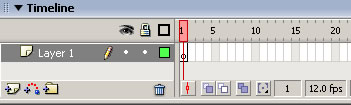
- Now you can see a single Layer called "Layer1" in your
timeline Window.
- Select the first frame. Import your image onto stage, upon
which you would want to implement motion tween.
File>Import>Import to Stage, or just press (Ctrl+R).
Or you can even draw your own object, you can either choose
Rectangular tool or Oval tool from the tool box and draw your
desired shape.
- Now select your object on the stage and press F8 to convert
this image to a Symbol. Convert to
Symbol window will pop-up.
Name your Symbol what ever
you like.
Select Graphic behavior
and press OK.
Note: You can create motion tween only on
symbols. So any object upon which you would want to implement
motion tween, First convert the object to a Symbol.
- Right now your Symbol is in frame1 of Layer1. Select frame 20
and press F6 to insert a new keyframe.
- Still keeping playhead on frame 20, move your Symbol to any
other position other than the present one.
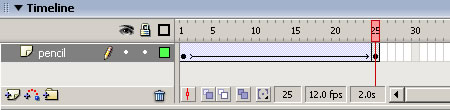
- Select any frame between, 2 to 19 and select Motion from the
tween pop-up menu in the Property inspector. Now your Layer will
look something like the one shown below.
-
Now press (Ctrl+Enter) to view
your motion tween.
©L.E.Vajzovic