Timeline Shape Tween in Flash 8
Introduction
Flash can create two types of tweened animation using timeline:
Motion Tween&
Shape Tween
Creation of Motion/Shape tween using timeline is the basics of
Flash.
By tweening shapes, you can create an effect similar to morphing,
making one shape appear to change into another shape over time. Flash
can also tween the location, size, and color of shapes.
This tutorial will teach you a simple shape tween.
Steps to follow:
- Open a new flash file (Ctrl+N).
New Document window
will appear
Select General
panel and choose Type: Flash
Document . Press OK.
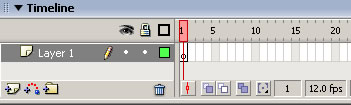
- If your timeline window is not open, press (Ctrl+Alt+T).
- Now you can see a single Layer called "Layer1" in your
timeline Window.
- Select the first frame. Now go to your working area and
draw any object. To start off with, may be you can draw a circle.This
is going to be your initial object.
In the above demonstration, my initial object is a short line.
- Select frame 20 and press F6 to insert a new keyframe.
- Still keeping playhead on frame 20, delete the object
present in your working area. Now draw a different object, may be a
square.
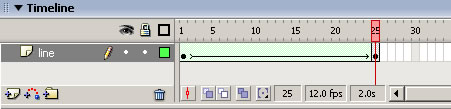
- Select any frame between, 2 to 19 and select Shape from the
tween pop-up menu in the Property inspector. Now your Layer will look
something like the one shown below.
- Now press (Ctrl+Enter)
to view your motion tween.
In the above tutorial, you learnt how to create a simple shape
tween. Believe me, using this logic you can create n number of
beautiful things.
©L.E.Vajzovic