Working with Layers in Flash 8
This tutorial will teach you how to work on layers using Flash 8.
If you still haven't finish motion tween. Please go through
Motion Tween Tutorial and then get back here.
Steps to follow:
- Open a new flash file (Ctrl+N).
New
Document window will appear
Select General panel and choose Type: Flash Document . Press OK.
- If your timeline window is not open, press (Ctrl+Alt+T).
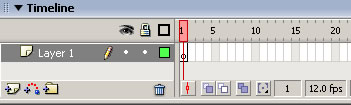
- Now you can see a single Layer called "Layer1" in your
timeline Window.
- Create a Shape Tween on Layer1. Similar to the one in Shape
Tween Tutorial.
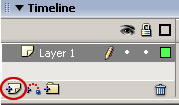
- Single click on add new layer button.
A new layer gets added. By default it will be named "Layer 2".
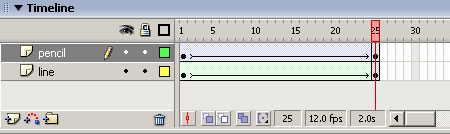
- Create a Motion Tween on Layer 2. Similar to the one in lesson2. After creating two layers, your timeline will look
something like the one shown below.
- Now press (Ctrl+Enter) to view
your motion tween.
©L.E.Vajzovic